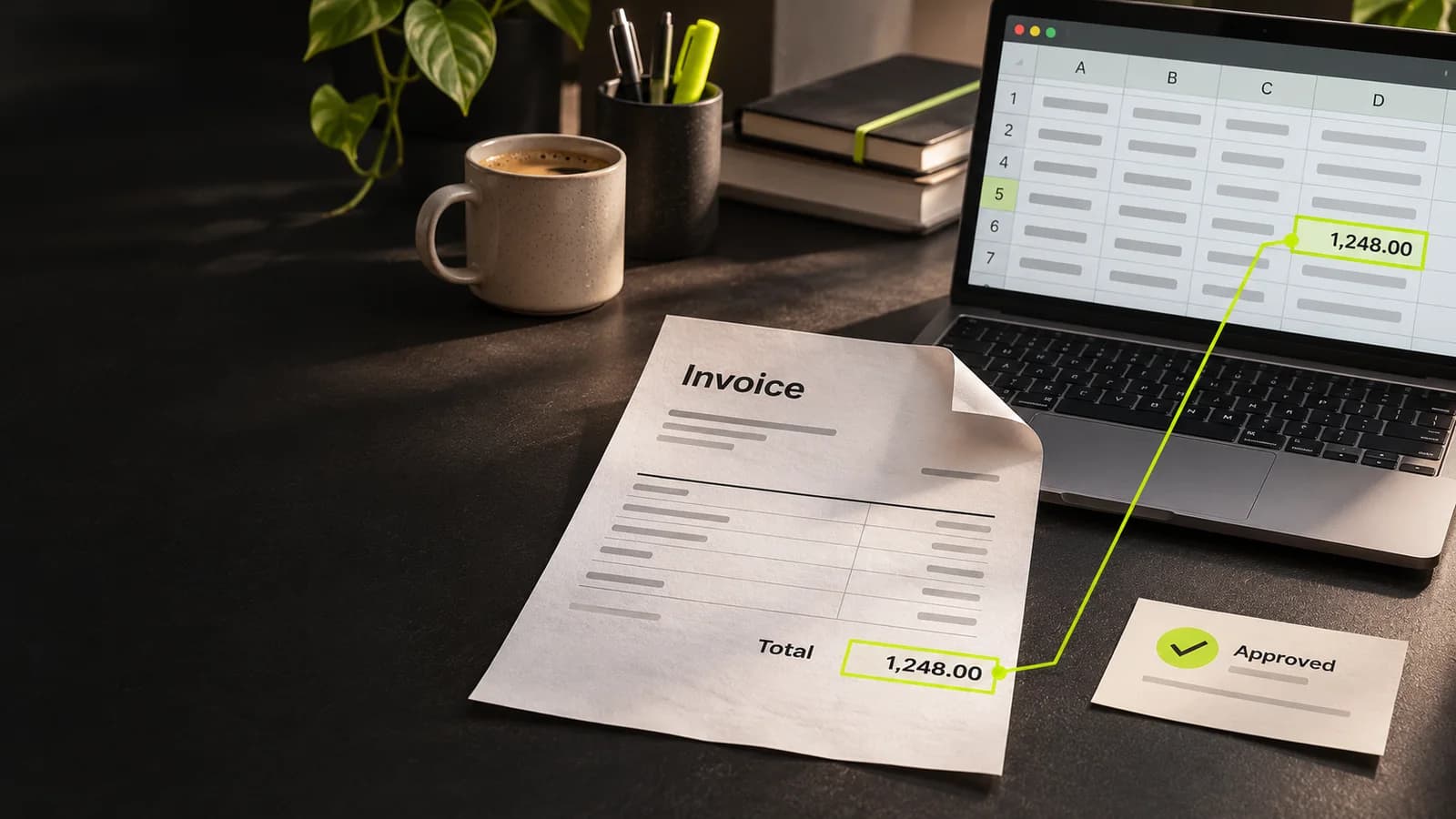
A practical invoice-processing workflow: capture the file, extract fields, check duplicates and totals, review exceptions, and export approved data.
Invoice data entry automation reads an incoming document, extracts fields such as the supplier, invoice number, date, and total, then prepares a structured record for review. Before writing approved data to Excel, Google Sheets, or another system, check required fields, arithmetic, duplicates, and the original document.
WHAT TO REMEMBER
- Reading an invoice is separate from approving it or paying the supplier.
- Use the original document, field checks, and review status to control export.
- Test the invoices you actually receive, including poor scans and unusual layouts.
What does automated invoice processing do?
A document-processing tool can recognize invoice text and return named fields. Microsoft’s AI Builder invoice model, for example, exposes fields including vendor name, invoice ID, dates, totals, and confidence scores. Those outputs can feed a workflow, but they still need checks appropriate to your business.
Start by deciding what the destination needs. A summary spreadsheet may need one row per invoice; another process may require every line item, its tax treatment, and a purchase-order reference. That difference changes the work involved and how you test it.
Map the route from incoming PDF to approved row
Use one approved intake location and retain the source file with restricted access. Assign a document reference before extraction so you can trace each spreadsheet row back to the file and review decision. The following is a proposed design, not a claim about a deployed Numar client system.
| Step | Output | Check |
|---|---|---|
| Receive | Saved file and document reference. | Supported file, readable pages, and authorized source. |
| Extract | Supplier, invoice ID, dates, currency, and amounts. | Required fields are present. |
| Validate | A list of exceptions or a review-ready record. | Duplicates, totals, date formats, and supplier match. |
| Review | Approved or rejected record with a reviewer. | Values checked against the source document. |
| Export | One approved record in the destination. | No duplicate export; destination reference recorded. |
Catch duplicates and amount errors before export
The same invoice can arrive as an attachment, a forwarded email, and a later reminder. A file fingerprint can catch identical files, while a supplier and invoice-number check can flag a different copy of the same invoice. Treat a possible match as something to resolve, not a reason to silently delete a document.
Check the currency, decimal format, subtotal, tax, discounts, and total according to the document. Keep credit notes and revised invoices distinct. An invoice number should remain text if leading zeros are meaningful; a spreadsheet converting it to a number can break your matching rules.
Keep payment details outside automatic updates. A newly extracted bank account or payment instruction should not change the supplier record or authorize a transfer. Route any requested change through the business’s existing approval process.
Use a review queue that shows the original document
Put the extracted fields beside a link or view of the original invoice. Show why the record needs attention, such as a missing invoice number or an amount mismatch. Give the reviewer a way to correct a value, record the decision, or reject the document.
A confidence score describes the model’s confidence in an extraction. It does not confirm that the invoice is genuine, that the supplier is approved, or that the amount is owed. Choose review rules by testing representative files and considering the consequence of an error.
Start with review of every record. If you later reduce review for a defined class of invoices, document the evidence, exception rules, and person who approved that change. Keep an audit trail of corrections and exports.
Test difficult files before estimating the savings
Include invoices from different suppliers, scanned images, multi-page documents, unusual date formats, credit notes, missing fields, and duplicate copies. Record accuracy for each required field and the time spent correcting it. A correct total does not compensate for the wrong supplier or invoice ID.
Test a failed export as well. The approved record should remain available, and a retry should not add a second spreadsheet row. Keep extraction status, review status, and export status separate so the office can see where work is waiting.
What determines the cost of invoice automation?
The quote depends on document volume, page count, input quality, required fields, destination systems, and the review interface. Ask about processing charges, storage, software licenses, setup, and ongoing support. Avoid comparing prices without comparing what reaches the final destination.
Measure net time saved after review and corrections. If a task currently takes four minutes per invoice and a pilot takes two minutes including checking, the potential saving is two minutes per invoice before maintenance. That calculation is illustrative and needs your own measurements.
Can this work with Excel or Google Sheets?
Either can be a destination if the selected workflow supports it and the access, volume, and record structure fit. Use stable column names and references, keep source links, and protect fields used by the integration. Connecting to accounting software requires its own compatibility and approval checks.
Assess your invoice intake process
Tell Numar how invoices arrive, roughly how many you handle, and where approved data needs to go. Describe the process in the inquiry form; any sample documents can be shared later through an agreed method.
Discuss invoice data entry